

With the quarterly Payroll Based Journal (PBJ) submission always on the horizon, facilities have a critical checklist to complete. While submitting staffing hours is the main goal, there's an essential validation step you can't overlook: reviewing your Minimum Data Set (MDS) census.
What is the MDS Census Report?
The "MDS census review" is the internal process of verifying the list of residents CMS believes are currently in your facility. It is not a report you simply run; it's a cross-check of your records against the officialCMS count, which is derived directly from your facility's submitted MDS assessments (or lack thereof).
The most critical thing to understand is how CMS calculates this number, as their method is what creates the risk. According to the CMS PBJ FAQ(Q23), their method is to:
- Extract all MDS assessment data for your facility going back one year.
- Identify discharged residents based on submitted discharge assessments OR an interval of 150 days or more with no new assessment.
- Assume any resident who does not meet these discharge criteria still resides in the facility
That 150-day rule is the key. A resident discharged 100 days ago without a proper assessment is still counted as active. As CMS notes, this means a"Failure to submit discharge assessments will likely result in an over-estimate of actual resident census... An over-estimate of resident census will result in the calculation of lower facility staffing levels..."
The primary objective of your review is to find and correct these"phantom resident" records before you submit your PBJ data.This ensures your census is accurate, your staffing ratios are calculated correctly, and your data stands up to auditor scrutiny.
The Link Between MDS Census and a Failed PBJ Audit
This verification process is crucial for compliance and accurate reporting. PBJ auditors are paying extremely close attention to mismatches between your facility's daily census (typically from your EHR) and the officialMDS census held by CMS. Why? An MDS census count that's higher than your actual resident count is a major red flag that something is wrong with your data.
This discrepancy often points to a correctable, but dangerous error:residents have been discharged, but the corresponding MDS discharge assessments were not completed or submitted in a timely manner.
This is where the audit risk begins. When your MDS census is artificially inflated (due to these "phantom residents" who are no longer in your facility), your PBJ-reported staffing hours are divided by a larger-than-actual number of residents. This results in an inaccurate calculation of your nursing hours per resident day (HRD), which is a serious data integrity problem.
This "significant variance" is exactly what auditors are trained to look for. CMS explicitly states in its FAQ (Q26) that a failed audit can be triggered if:
...a facility did not complete all MDS discharge assessments timely, resulting in an inaccurate census calculation.
A finding like this isn't just a simple correction. This can result in a failed PBJ audit and could lead to further investigation by CMS for potential noncompliance or billing inaccuracies. In order to ensure your MDS census is correct it's important to be completing discharge assessments on every resident not included in your census.
Step-by-Step Guide to Running the MDS Census Report
PBJ reports are submitted quarterly, and facilities are expected to run their census report before submitting their PBJ information.
1. To begin, visit the iQIES website.
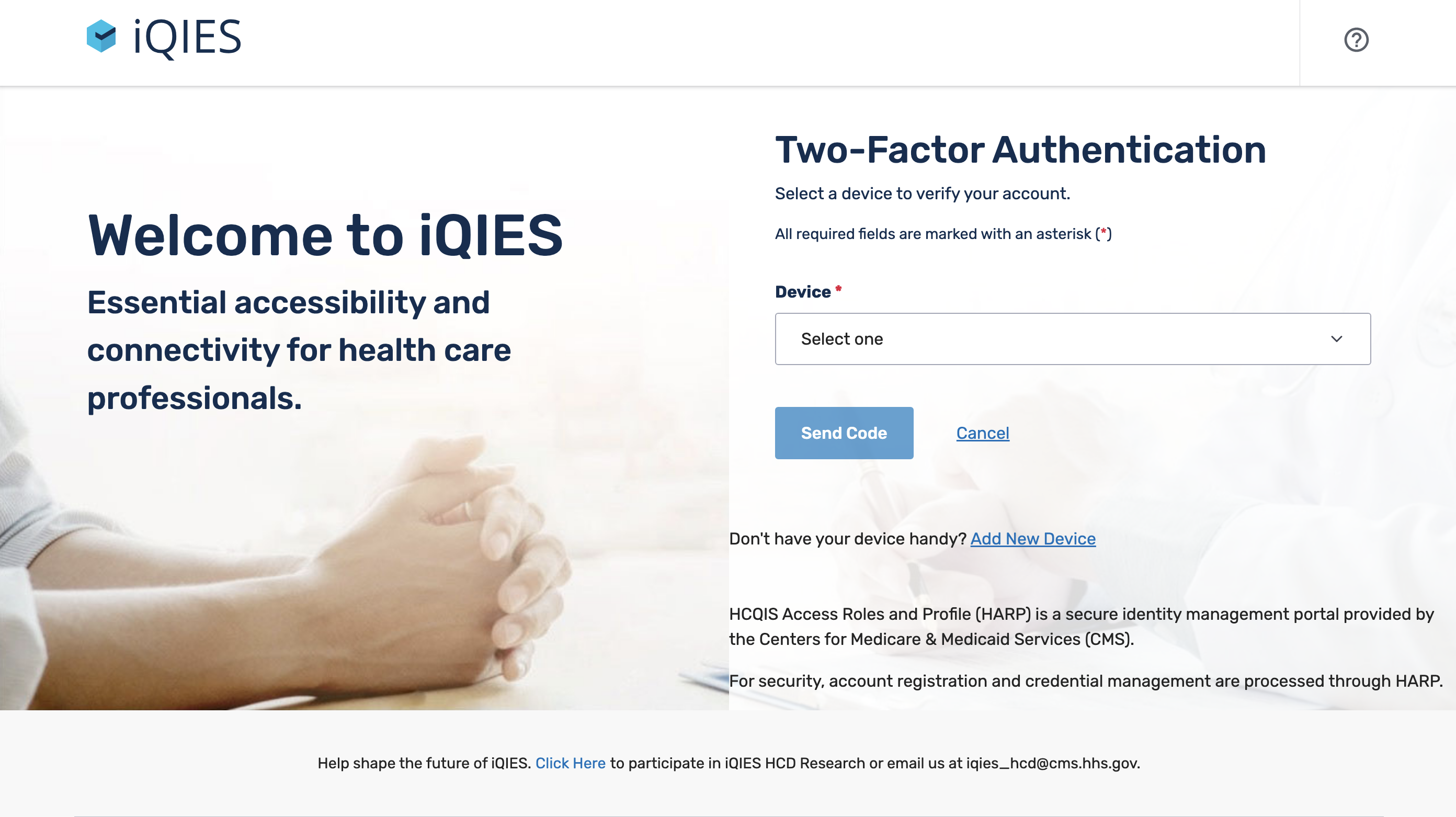
2. Once you have entered your login information, click on the Reports menu, and click "Find a Report".
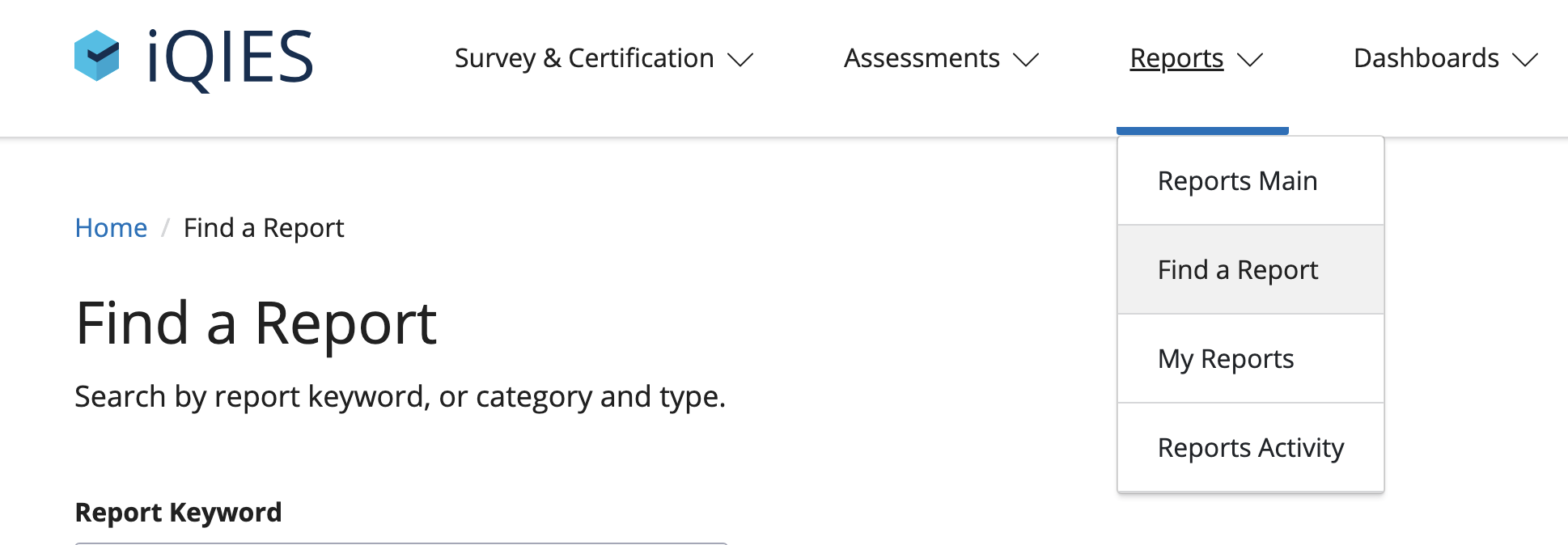
3. Under Report Type, choose “Census.”

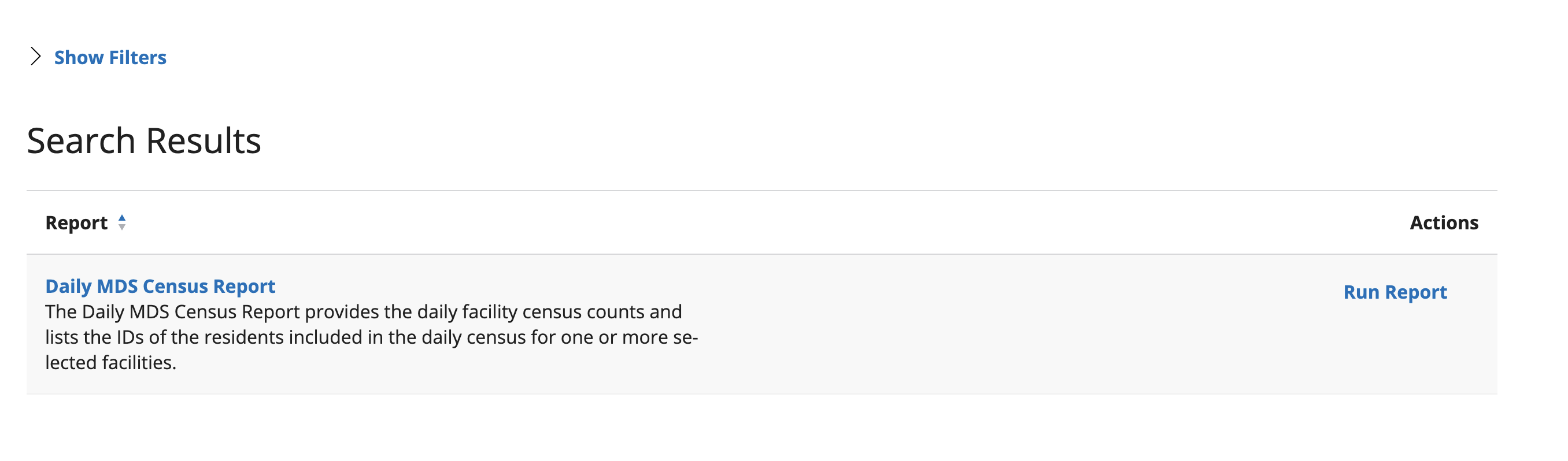
4. The search results will bring up “Daily MDS Census Report.” Under Actions, click “Run Report.”
5. Select your state, and enter your facility ID.
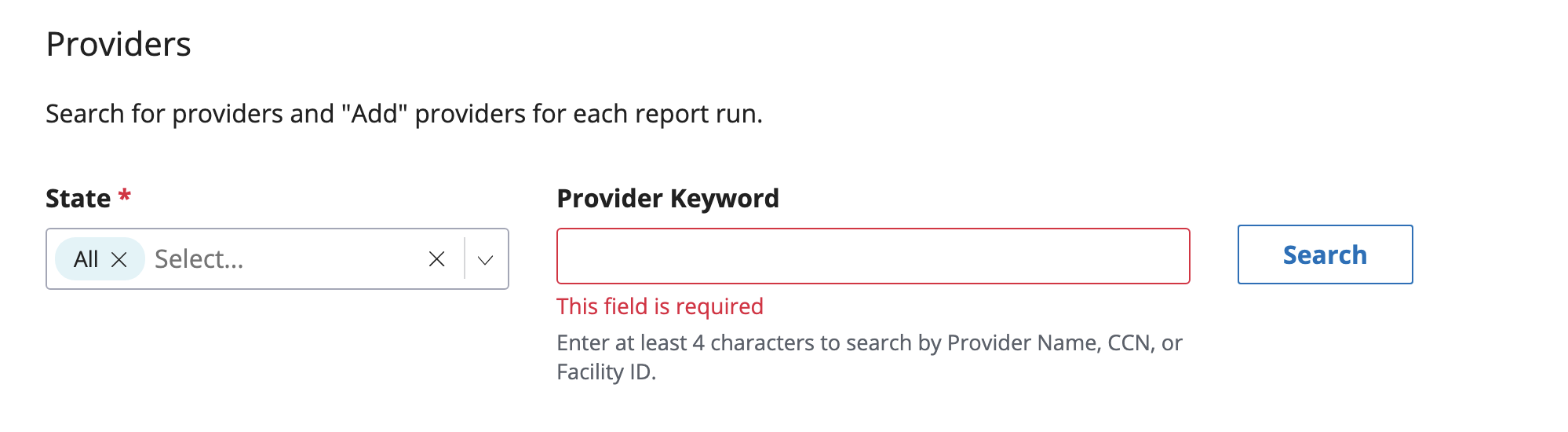
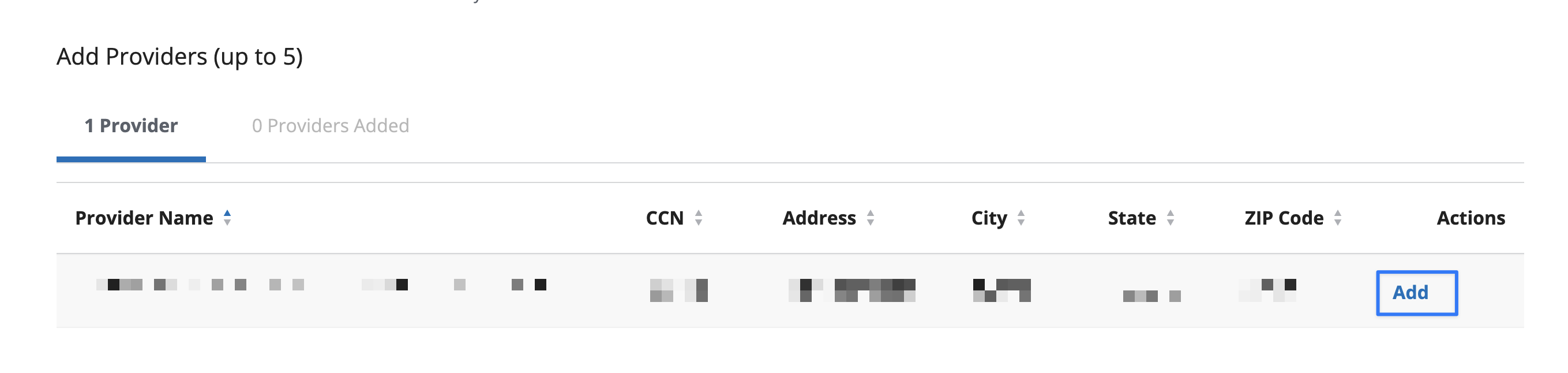
6. Once your facility appears on the screen, click “Add” under “Actions.”
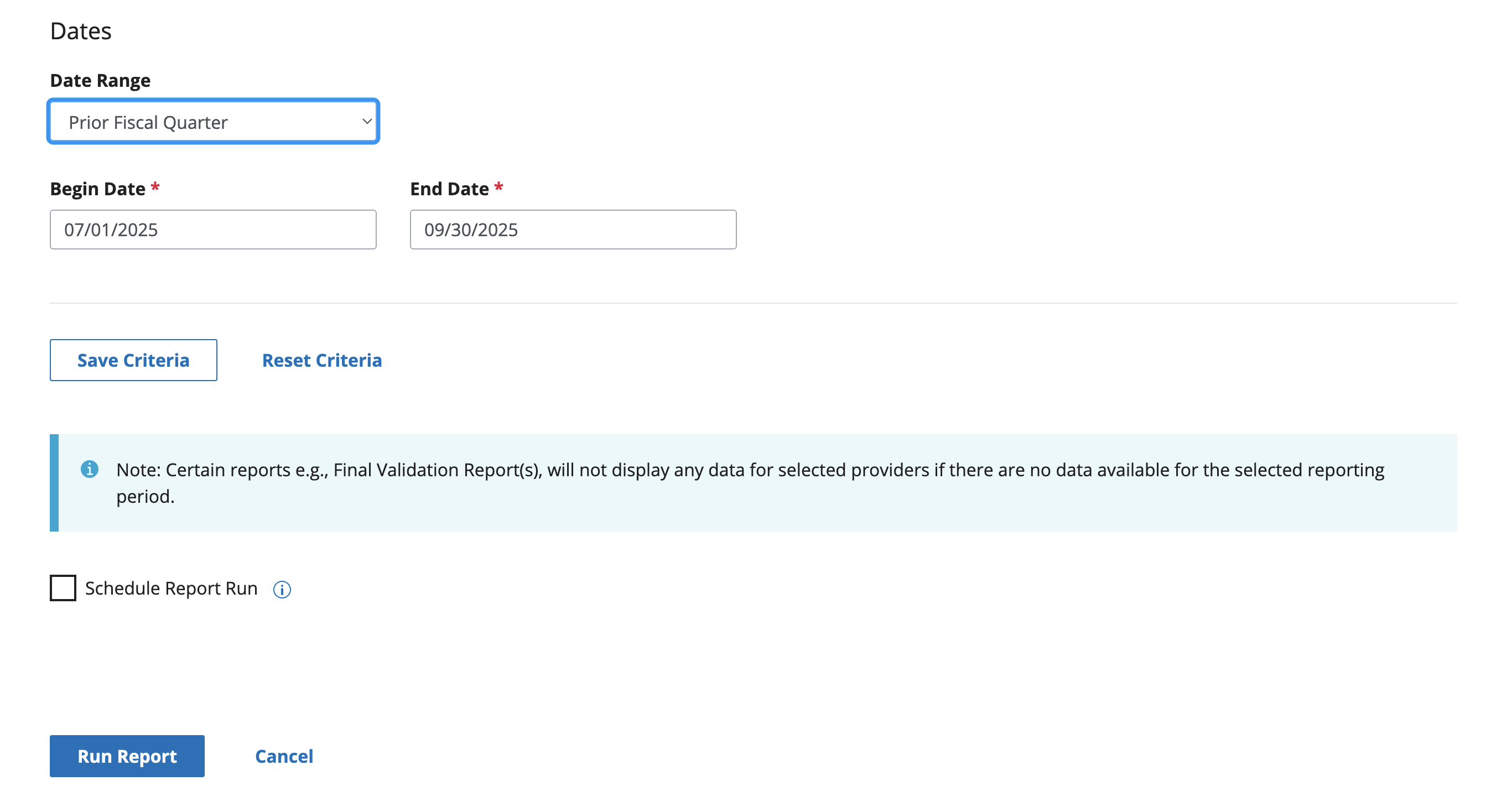
7. When choosing which dates to include, use the prior fiscal quarter.
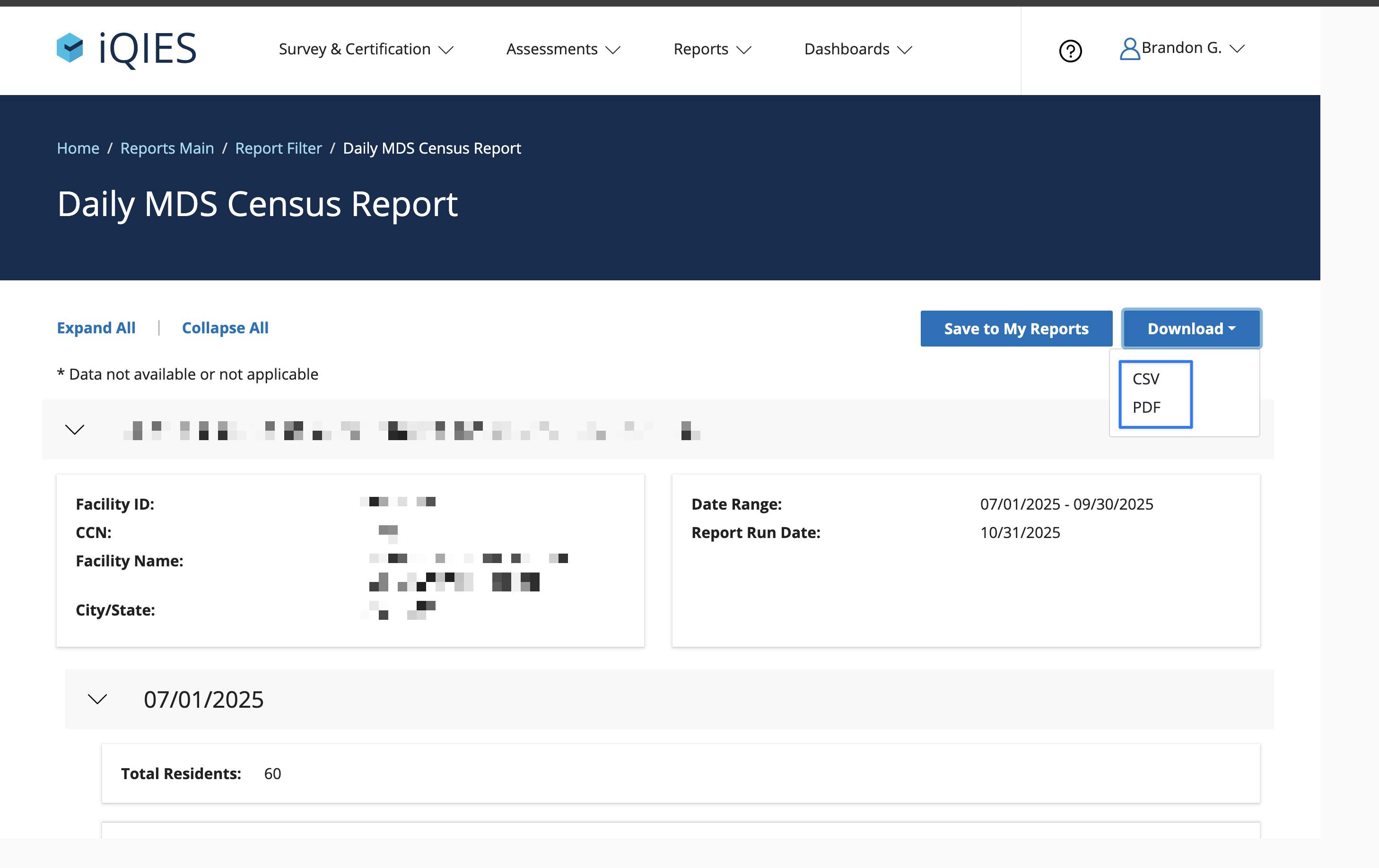
8. This will generate your report. At the top right corner, click “Download”, and you will see two options: to save your report as a PDF or CSV file. Save both files for your records.
When comparing your internal census count (per day) compared to what CMS has recorded, we've found the CSV to be a much better starting place...
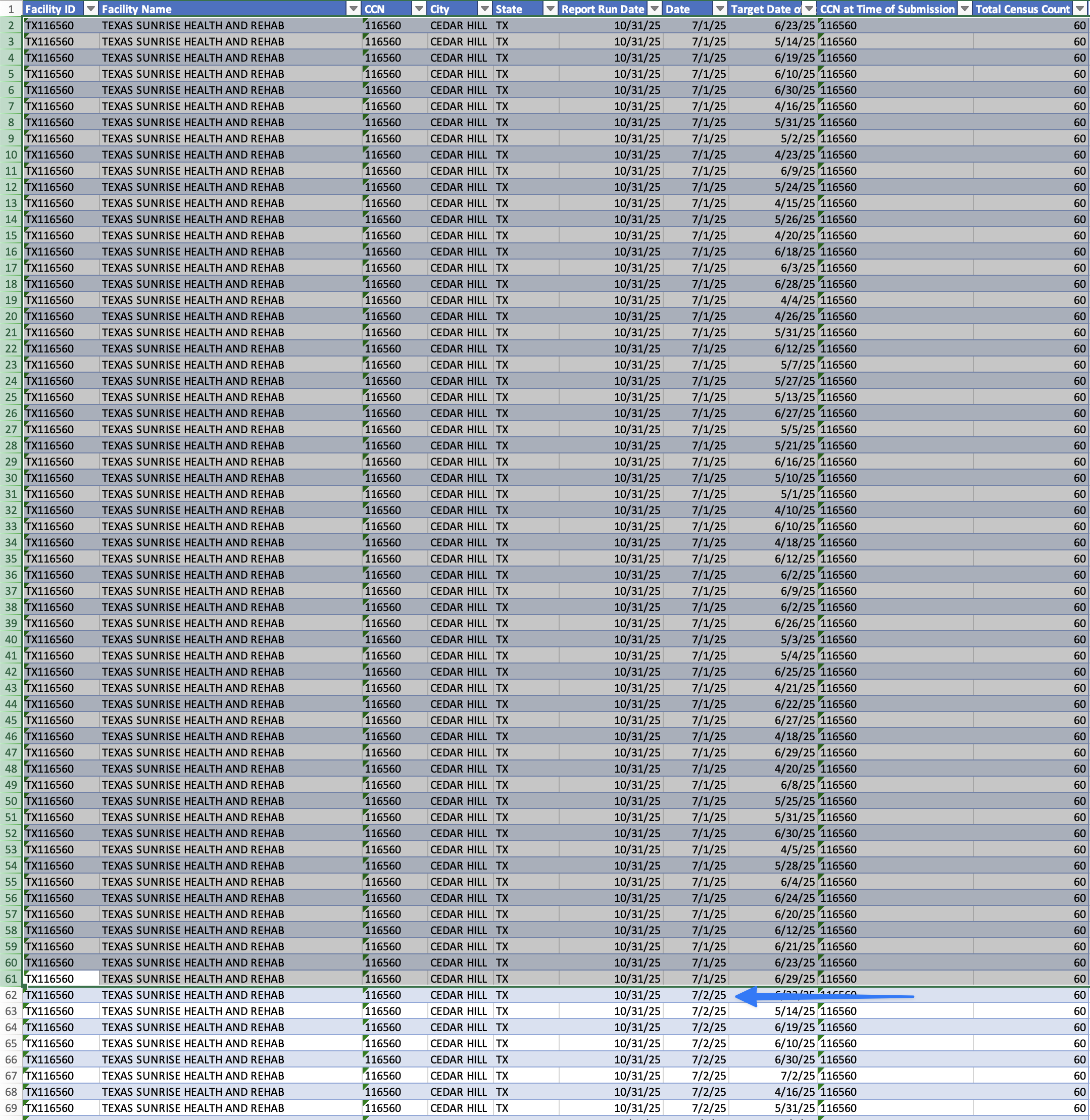
The challenge is to review this list for every day in the quarter. Once the list gets to the next calendar day, you'll need to start the audit over for that day.
Report Challenges and Troubleshooting
Unfortunately, running this report each quarter can be confusing and time-consuming. If you notice any discrepancies between your CMS census report and your facility’s daily census log, you are responsible for determining the issue and remedying it. Start by reviewing discharge assessments to find out if any are missing.
Aim to plan time each quarter to run and review your CMS census report, so that you are prepared to submit your PBJ data on time. Though the process is cumbersome, it’s an essential step in staying compliant and being eligible for the resources your facility needs.